


We recently brought C++ code understanding tools to GitHub Copilot in Visual Studio and VS Code. These tools provide precise, semantic understanding of your C++ code to GitHub Copilot using the same IntelliSense engine that powers code navigation in the IDE. Until now, these capabilities have been tied to GitHub Copilot in Visual Studio and VS Code. Today, we’re bringing this same intelligence to the CLI with the release of the Microsoft C++ Language Server for GitHub Copilot CLI, now available in Preview.
Why this matters
C++ is difficult for tools to reason about: complex include hierarchies, macros, templates, overloads, and build-system-dependent configurations mean that text search alone can give incomplete or misleading results. The Microsoft C++ Language Server provides the GitHub Copilot CLI with precise semantic data – including symbol definitions, references, call hierarchies, and type information – to complement grep-style search. Let’s look at an example using {fmt}, an open-source formatting library.
Example scenario
I want to create a custom fmt formatter for the following internal type:
enum class LogLevel {info, warning, error};One way to define a custom formatter is to inherit from an existing formatter. I want Copilot to provide a summary of all base formatters that are available to inherit from and a recommendation for which one I should use.
With the Microsoft C++ Language Server enabled, Copilot:
1. Uses workspace symbol search to find existing formatters in the fmt library
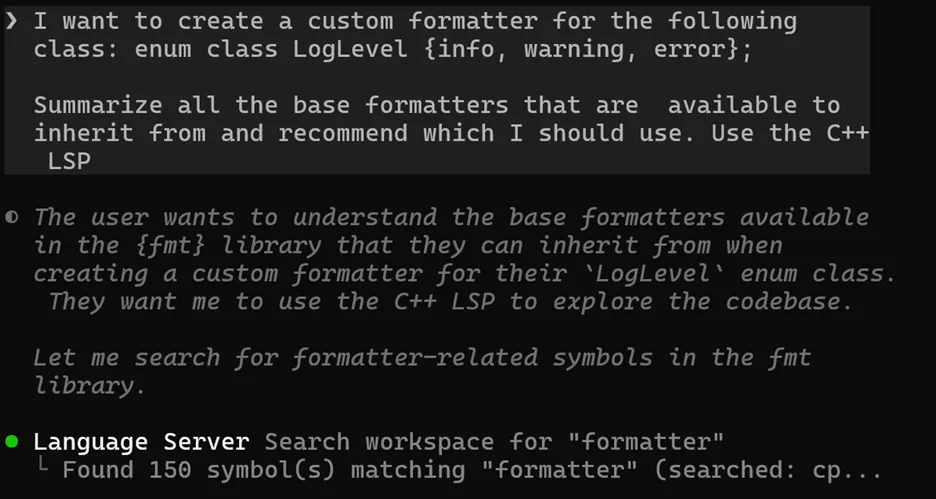
2. Uses go to definition on key base classes

3. Summarizes all existing formatters, their purpose, and a recommendation
In contrast, without the Microsoft C++ Language Server enabled, Copilot uses iterative grep searches to build its understanding of potentially relevant code.

Then, instead of jumping to the definition of key base classes, it uses grep on the class name, which returns all instances of those types across the codebase to filter through.

In this example, the precision of LSP protects against the retrieval of irrelevant results.
Getting started with the Microsoft C++ Language Server
The Microsoft C++ Language Server is available in Preview as a npm package. It runs on Windows, Linux, and macOS. Check out the quick start guide in the README of our corresponding issue-only GitHub repository to get started. An active GitHub Copilot subscription is required.
The Microsoft C++ Language Server requires:
- Authenticating with the GitHub Copilot CLI
- Creating a compile_commands.json file for your project
- Configuring your project for use with the GitHub Copilot CLI
Our issue-only GitHub repository contains a skill to automate steps #2-3 for CMake projects and instructions to walk through the process yourself. For MSBuild (vcxproj) users, we’ve created a sample application to help extract compile_commands.json from C++ MSBuild projects. Integrated support for C++ MSBuild projects is planned for a future release.
Different models are more or less likely to call the C++ LSP. For best results, we recommend appending something like “Use the C++ LSP” to the end of your queries or creating a custom instructions file to prefer the C++ LSP.
Share your feedback
The Microsoft C++ Language Server is available in Preview for early feedback. To report a problem or suggest an improvement, follow these instructions to open an issue.


0 comments
Be the first to start the discussion.